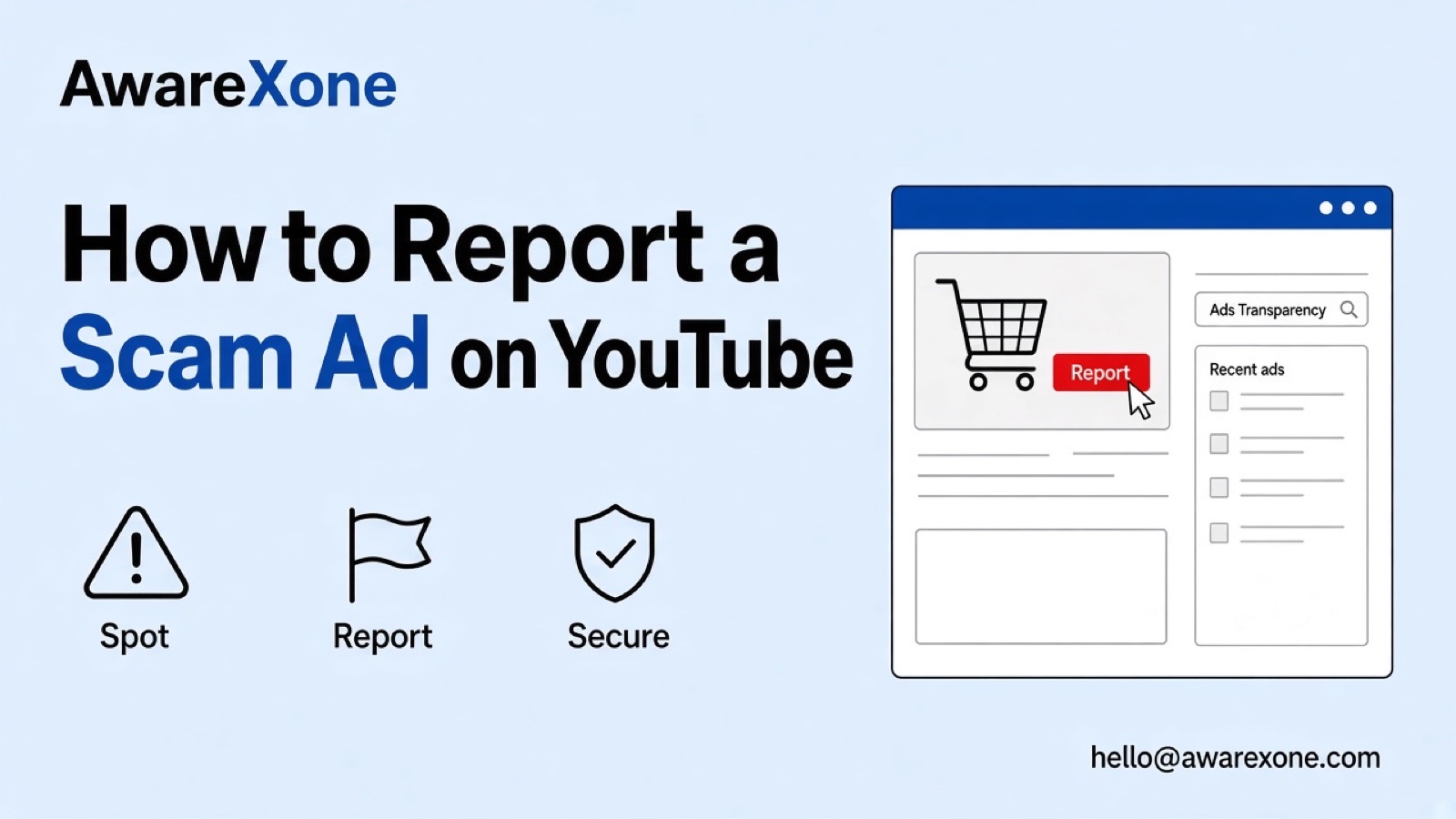
Report a paid YouTube ad through its More or Info control on mobile or computer. If it disappears, try Your recent ads in My Ad Center or search the Ads Transparency Center by advertiser or website. Reporting and blocking are different. Do not open a suspicious destination to collect evidence.
Summary
Paid YouTube ads have a different reporting route from ordinary uploaded videos, creator monetisation reviews and advertiser account appeals.
If an ad disappears, try recent ads in My Ad Center or search the Ads Transparency Center using visible advertiser details.
Reporting an ad does not block it, and neither action guarantees that Google removes the advertisement from the platform.
Use information already visible or legitimately saved; do not visit suspicious destinations, install apps or share login details for evidence.
In-ad reporting is documented for YouTube mobile and computer, not a television menu or a complete historical ad archive.
A YouTube ad claims a familiar brand backs an investment, or offers support that looks wrong. Before you find the reporting control, the ad disappears. You can still try official recent-ad and advertiser-search routes without following its destination.
This guide is for viewers and people whose identity or business is misused in paid YouTube advertising. It is not an appeal for your own advert, a creator monetisation problem or an ordinary video-removal guide. Google decides whether a reported ad violates its policies.
Report a paid YouTube ad through its More or Info control on mobile or computer. If it disappears, try Your recent ads in My Ad Center or search the Ads Transparency Center by advertiser or website. Reporting and blocking are different. Do not open a suspicious destination to collect evidence.
YouTube's policy-violative ad guidance says to report an ad while it is displayed or use its linked form. It also says reporting from the ad itself is available only on YouTube mobile and computer. The table below separates those controls from ways to look for an ad afterwards.
Writer-created ad-location decision table based on Google Help, checked 9 November 2026. Matching and privacy cautions are practical safeguards, not guarantees of retrieval.
What you have
Official route to try
What not to assume
The paid ad is still displayed on mobile or computer
Use More or Info on the ad, then Report ad and the shown reason/form.
The Report control for the video underneath is not a substitute for identifying the paid ad.
The ad disappeared but you saw it recently
Try My Ad Center: My Ads, then Your recent ads. Locate it and select Report ad.
The checked Help page does not promise every past ad will be present.
An advertiser name or website was already visible
Search the Ads Transparency Center by that name or website. Select the matching ad, then Report this ad.
A search match must be checked; a familiar logo alone does not identify the advertiser.
You saw the ad on television
Use the verified mobile/computer or advertiser-search routes with information already available.
No television Report ad menu is established by the sources checked here.
It was actually a normal uploaded video
Use the relevant YouTube content-report route for the video itself.
An ordinary video report is not the same task as asking Google to review an advertisement.
Google's Report an ad instructions say to select More or Info on the ad. If several ads appear in My Ad Center, select the particular one you intend to report. Choose Report ad, select your reason and complete the form and additional information shown. The Help page specifically says not to edit fields that are already filled in.
Check that the control belongs to the advertisement, not the ordinary video or channel you were watching.
Use More or Info, then Report ad. Choose the reason that fits what you actually observed.
Explain the concern accurately using information already visible. Do not invent a destination, company connection or identity claim.
Leave prefilled fields unchanged and follow the current form. Submit only when you can describe the specific ad responsibly.
Do not let an ad pressure you into following it before it vanishes. A countdown or a familiar face is not a reason to open the advertiser website, install anything or provide account details. An incomplete but honest note is safer than creating new exposure to make the report look stronger.
The Google Ads reporting guide gives a recent-ad fallback: open My Ad Center, go to "Your recent ads" within the My Ads menu, locate the ad and select Report ad. Use the instructions shown for your account. This is a place to look, not a promise of a complete viewing history or a way to reconstruct every advertisement you ever saw.
Check the creative against what you remember before reporting it. Similar branding, a reused image or a familiar business name can point to a different advertisement. If you cannot find a confident match, do not report an unrelated item simply to reach a comments box. Keep your uncertainty visible in any explanation.
The same official guide offers an Ads Transparency Center search by advertiser name or website. Select an ad, then choose "Report this ad". Search with a name or domain you already saw in the ad or saved in a screenshot. Typing a known domain into Google's advertiser search does not require visiting that domain.
An advertiser identity and the brand being copied may be different. Note which name came from the ad details and which belongs to the organisation the ad claims to represent. Do not silently substitute one for the other. A search that returns nothing does not establish that an ad never existed or that Google approved its claims.
YouTube also links to Google's Report an ad/listing form. The public form was reopened for this guide. It shows an ad or listing link field with an instruction not to change it if prefilled, and a comments field. Its comments guidance asks for detail and accuracy without sensitive information. Follow the live form rather than treating this as a complete inventory of every conditional field.
If you already have the relevant ad link, retain it accurately. Do not replace an ad link with the video you happened to be watching unless the current form explicitly instructs you to do so. A destination website, an advertiser identity and an ad link are different identifiers. Do not fabricate one or open a suspicious destination to obtain it.
If a required item is unavailable, pause rather than assume the alternative form accepts an unidentified ad. Try the verified recent-ad or advertiser-search options above. This guide does not promise that the form can recover the missing creative or that reporting is possible with no identifiable ad information.
The ad-reporting Help page states: "Reporting an ad doesn't block that ad." Reporting asks Google to review a possible policy violation. Blocking is a separate control for what you see. YouTube's page describes More or Info, then Block ad, and says this option is available only if you choose to customise the ads you see in My Ad Center.
Do not treat a blocked ad as proof that the advertiser has been removed from the platform. Equally, submitting a report does not mean the ad disappears from your own screen. These are different outcomes. If the block option is unavailable, use only the controls actually offered; do not assume a missing button means you used the wrong reporting reason.
If the concern is an uploaded video rather than a paid placement, our guide to getting a harassing YouTube video reviewed covers that separate route. Reporting the unrelated creator whose video carried an ad does not identify the advertiser you meant to report.
#Describe the Deception Without Visiting the Destination
Google's Misrepresentation policy prohibits scams involving hidden or misrepresented business information, false affiliation and brand impersonation. It also prohibits misleading ad designs and media manipulated to deceive. Those are useful categories for explaining an observed concern, not proof that every unfamiliar advertiser or disappointing advert violates policy.
Describe the claim you saw, then separate it from what you know. If your business is being impersonated, explain the claimed connection and the part that is false. If you are a viewer, say that the ad appeared to impersonate a named organisation rather than claiming to speak for that organisation. Google reviews the report and decides.
For a fake endorsement, describe the endorsement presented in the ad. Do not state that a voice or image was generated unless you can support that statement. The relevant concern is the misleading claim you observed; you do not need to investigate the person featured or prove how the ad was produced.
The following is a practical preparation checklist, not a list of mandatory Google upload fields. Use what is already available without opening the suspicious destination. Keep the note private rather than turning an uncertain identification into a public accusation.
The date you saw the ad, the device you used and whether it appeared as a paid placement.
The advertiser name and website text already visible, with a clear distinction between advertiser and impersonated brand.
The exact claim, offer or endorsement text you observed. Mark remembered wording as approximate rather than presenting it as a quotation.
Any screenshot you already have, keeping unrelated personal details out of anything you later share. Do not claim the form accepts an upload unless it offers that option.
The specific false affiliation or impersonation concern, and whether you are the affected business or a viewer reporting a concern.
The route you used and any acknowledgement you receive, without assuming that a report record proves removal.
Never install an app, enter login codes or complete a transaction to produce evidence. Do not give a purported reporting helper access to your account. If the same brand misuse appears on Facebook or Instagram, our Meta fake-brand-ad guide covers its different controls; those steps are not interchangeable with Google reporting.
Google Help says you receive an email confirmation and that Google reviews the report and takes action when appropriate. Keep any acknowledgement you receive. It is not a decision that your interpretation was accepted. The sources checked here do not establish a fixed review time, removal outcome, complete historical retrieval or blanket anonymity for this process.
A review of a paid ad is also not an appeal about creator earnings or an instruction for recovering an account. Keep the report tied to the advertisement and its observed claims. If the ad is no longer findable, a truthful record of what remains available is more useful than repeated reports against approximate matches.
Expert help is sensible when your identity or business is being copied across several ads, when you cannot distinguish the advertiser from the impersonated brand, or when preparing a report risks exposing private information. An experienced team can help organise existing evidence and choose the legitimate reporting route, without visiting a suspicious destination or promising an outcome.
AwareXone is Malaysia-based and independent of Google. Our content removal case review helps prepare legitimate platform reports through official channels. We do not ask for passwords or login codes and cannot promise that Google will remove an ad. Read our trust commitments before deciding whether a review fits your situation.
Try Your recent ads in My Ad Center or search the Ads Transparency Center by advertiser name or website. Google describes both routes, but does not promise every past ad will be retrievable.
Does reporting an ad also block it?
No. Google says reporting does not block the ad. Blocking is a separate control, and availability can depend on your ad customisation choices.
How do I report an ad I saw on a television?
The checked YouTube Help page limits in-ad reporting to mobile and computer. Use those verified routes or advertiser search with information already available; no television reporting menu is described here.
Should I click the scam website to get proof?
No. Use visible advertiser or website information and evidence already available. Do not visit the destination, install anything or provide login details to strengthen a report.
Can I report the video underneath the advertisement instead?
That is a different reporting task. Identify the paid ad through its controls or official advertiser-search routes rather than treating an ordinary video report as an ad report.